
How to Add Your Own Dubbed Audio Track to a YouTube Video
YouTube's automatic dubbing is generous, but it is a one-size-fits-all voice reading your words back to you. If a video matters — a flagship tutorial, a launch, anything with a joke in it — you can put your own dub in its place. Here is the whole path, from export to published track.
Dub the video and export the audio only. Then in YouTube Studio on a desktop: Languages → your video → Add Language → the language → Add next to "Dub" → select the file → Publish. If YouTube already auto-dubbed that language, delete the auto-dub first — a language can only carry one dub. You need access to Advanced features, and the file must be roughly the same length as the video.
Two features get confused here, so let's name them. Automatic dubbing is YouTube generating a dub for you. Multi-language audio is YouTube accepting a dub you made. The second one is the interesting one, and it works on videos you published years ago, not just new uploads.
1. Export the dub as audio, not video
The upload dialog wants an audio-only file. That trips people up, because most editing tools hand you a finished video and call it a day. A dubbing studio that treats exports properly gives you three artifacts from the same project: the dubbed video, the dubbed audio on its own, and subtitle files in either language.
Two things to keep in mind while you export:
- Match the length. YouTube asks for a track "roughly the same length" as the video. If your dub is cut to the same timeline — which it should be — this is automatic. Don't trim silence off the ends.
- Keep the music and effects in it. A dub track is the whole soundtrack in the new language: voices replaced, background carried through. If you upload voices alone, the video goes silent under them.
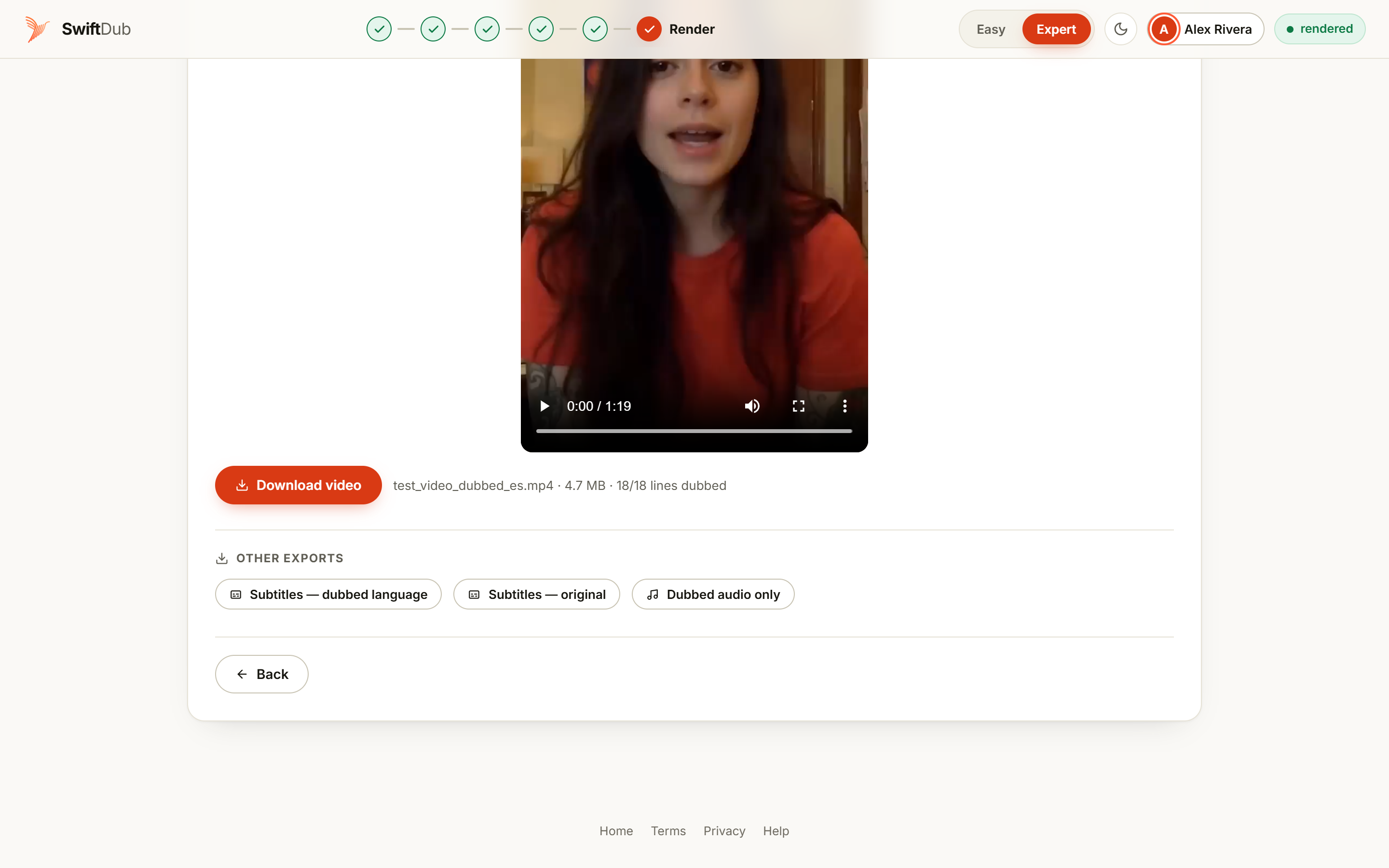
In SwiftDub the finished dub is already mixed at the right levels, so the audio-only export is the same audio the dubbed video carries. Export it, name it something a future you can read — launch-video_dubbed_es.flac beats final_v7_AUDIO(2).mp3 — and the interesting part is over.
2. Check you can upload tracks at all
Multi-language audio is available to channels with access to Advanced features. If you have never touched that switch, it is in Studio under Settings → Channel → Feature eligibility: a phone verification first, then either enough channel history or an ID/video check for a newer channel. Only the primary owner of a channel can do it. Sort it out once, on a quiet afternoon, before the video you care about is waiting on it.
Managing tracks is desktop-only. Studio on a phone will not show you the Languages page properly — plan on a computer.
3. Find the Languages page
In YouTube Studio on the web, the left menu has Languages. Open it and click the video. This one screen holds everything: the audio tracks in each language, translated titles and descriptions, and — for long-form videos — per-language thumbnails.
Take thirty seconds here before uploading anything. The page tells you which languages YouTube has already auto-dubbed for this video, and lets you preview them. If an auto-dub is genuinely fine, you may decide this video does not need your track after all. That is a good outcome too.
4. Delete the auto-dub you are replacing
This is the step that makes people think the feature is broken. YouTube will not accept your file in a language that already has an automatic dub, because a language gets exactly one track. So:
- On the Languages page, find the language row.
- Open the options for the audio entry and choose Delete.
- Then upload your own version.
Deleting is permanent — an auto-dub that has been deleted cannot be republished. If you might want it back, note which languages were auto-dubbed before you clear them; YouTube can regenerate a fresh auto-dub later, but it will not be the same take.
5. Upload your track
- Click Add Language and choose the language.
- Next to Dub, click Add.
- Click Select file and pick your audio-only export.
- Click Publish when you are ready for it to go live.
Two details worth knowing. First, Publish is a real gate: until you click it, the track is staged and nobody sees it, so you can upload, check, and re-upload without an audience watching you work. Second, if your video contains copyrighted music, YouTube may remove a secondary audio track when it detects that the copyrighted content differs from the original — a dub that rearranges the music bed can trip that check even when the video itself is fine.
6. Finish the job while you are in there
An audio track alone leaves half the reach on the table. On the same page:
- Translate the title and description. These are what YouTube's search actually reads. A dubbed track in a language whose title is still English is a track nobody was searching for.
- Consider a localized thumbnail. For long-form videos you can set a thumbnail per language, and viewers see the one matching their language setting. Text on the thumbnail, in the viewer's language, moves click-through more than most creators expect.
- Add subtitles too. The dub serves people watching with sound; captions serve muted playback, noisy rooms and hard-of-hearing viewers. They are different audiences, not duplicates — and the subtitle file is one more button in your dubbing tool.
How viewers end up hearing it
YouTube picks the audio track from the viewer's preferred language, which comes from their watch history, and anyone can switch tracks in the player's settings menu. So your track is not tucked away in a submenu — for a viewer who watches in that language, it is the video. That is the whole reason this feature is worth ten minutes of your time.
Troubleshooting, in the order people hit it
| Symptom | What is actually going on |
|---|---|
| No "Add" button next to Dub | The channel lacks Advanced features access, or you are on the mobile site rather than desktop Studio. |
| Upload rejected in a language that already has a dub | An auto-dub (or a track you uploaded earlier) occupies that language. Delete it, then upload. |
| The file is refused | It is a video file, or its length drifted far from the original. Export audio-only from the same project timeline. |
| Track disappears after a day | Copyright detection on the secondary audio. Check the music bed in your dub against the original. |
| Views do not move | The title and description are still in the original language, so the search index never offered the video in the new one. |
The honest cost of doing this well
Producing the track is the cheap part — a few minutes of clicking, then about thirteen minutes unattended for an eighty-second clip (we timed it; the breakdown is in what dubbing really costs and takes), and Premium at $12.99 a month covers videos up to 30 minutes. The part that costs real attention is the listen: budget about five minutes of your own ears per ten finished minutes, more if the video is dense with names. And if you can, have one native speaker of the target language hear it before you press Publish. It is the single highest-leverage five minutes in the whole workflow.
Make the track YouTube wants
Import a video, dub it, and export the audio on its own — plus subtitles in both languages, if you want them. The free plan covers short clips end to end.
Open the studioFrequently asked questions
Can I upload my own dubbed audio to YouTube?
Yes — that is what multi-language audio is for. You upload a separate audio track per language, on a new or an existing video. Advanced features access is required, and the file must be audio-only and roughly the video's length.
Why won't YouTube accept my dub in a language that already has one?
Because a language carries one track at a time. If an automatic dub exists, delete it on the Languages page first, then upload yours. A deleted auto-dub cannot be republished, though YouTube may generate a new one over time.
Do viewers actually hear my track?
Yes. YouTube defaults the audio to the viewer's preferred language based on their watch history, and viewers can switch tracks in the player. Your track replaces the experience for them rather than sitting in a menu.
Does this help my video get found?
The track is not what search reads — translated titles and descriptions are, and those are indexed in the viewer's language. The track is what converts the click into a watch. Do both, or the reach stays theoretical.